
Credit unions that participate in the Corporate Checking program will review their cleared drafts on a daily basis. Drafts that need to be returned will be identified by the credit union Users, and the correction requests will roll up to the corporate for processing and review.
Corporate Users with appropriate privileges are able to access the Returns area by navigating to the Corporate Checking module, and clicking the Returns tab.
The Returns card displays return requested by the credit union members. Regardless of the member credit union selected at the top of the screen, return requests from all members are displayed in the table.
Upon entering the screen, the table is defaulted to display outstanding returns in a working status, listed in order from oldest open request to most recent open request.
Corporate Users may use filtering date tabs and standard filtering options located at the top of each column to help facilitate searching. To quickly set a date range, Users may select the Today, Last 30 Days, Last 60 Days, and Last 90 Days tabs located at the upper left side of the card. Click the arrow next to the column header to sort the column. The orange arrow indicates which column is currently sorting the information. Search within a column by typing information into the Search box located just under the column header, or by utilizing the column dropdown, if available. Specify a custom date range by providing From and To dates in date columns. To clear filters, click the x located in the search box, or click the Clear filters option at the top right side of the card.

| Dropdown Contents | Option | Description |
|---|---|---|
| Member | Filter to a specific credit union member | |
| Return Reason | All Reasons | |
| Altered | The draft has been altered | |
| Branch/Account Sold | The branch/account was sold | |
| Counterfeit | The draft is counterfeit | |
| Divested | The account has been divested | |
| Duplicate Presentment | The draft has already been paid | |
| Encoding Error | The draft information was submitted incorrectly | |
| Fictitious | The draft is fictitious | |
| Forgery | The draft is forged | |
| Not Authorized | The draft is not authorized by the drawer (ex. phone generated checks) | |
| Not Our Item | The draft is not drawn off of the credit union | |
| Stale Dated | The draft was written at least 6 months ago | |
| Stop Payment | Use if there is a stop payment placed on the draft | |
| Suspected Counterfeit | The draft is a suspected counterfeit | |
| Wrong Financial Institution | The draft does not belong to the credit union | |
| Other Return | The draft is being returned for another reason | |
| Status | All Working | Active return requests yet to be resolved; different by Operations or Accounting view |
| Open | Return request has not been assigned to a corporate User and has not been processed | |
| In Progress | Return request has been assigned to a corporate User and is actively being processed | |
| Exported | Return request has been exported to the vendor for processing | |
| Accounting Review | Return request is being reviewed by Accounting | |
| Processed | ||
| Completed | The return request has been processed and is complete | |
| ACCT Reject | Return request was rejected by Accounting | |
| Need Info | More information is needed by the credit union member before proceeding with processing | |
| Rejected | The return request was rejected by the corporate |
To review a return request, the corporate User will click the blue dropdown arrow related to a specific item. The Return Request Detail displays information about the presented draft, as well as the Return Reason, Return Notes, and Requested by information entered by the member credit union User. Draft Preview shows the images of the front and back of the draft. The Export to PDF button allows corporate Users to create a PDF of the draft clearing information and images. Finally, the User will take ownership of processing the request in the Process an Adjustment Request section by selecting the In Progress check box.
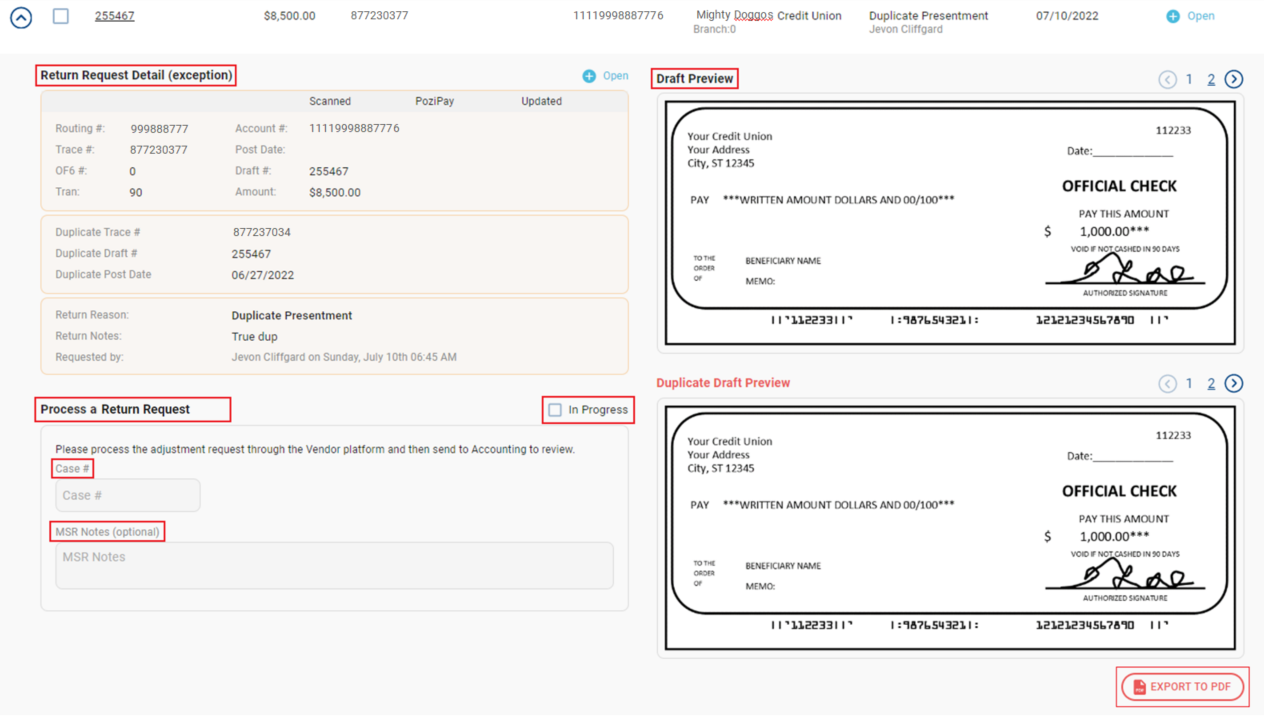
Operations Returns Processing
To process returns:
- Navigate to Corporate Checking
- Click Returns tab
- Select return to process - various types listed below
Open Returns
Open returns have not yet been reviewed or processed. These types of requests have a Status of Open.
- Click the blue dropdown arrow for an Open request
- Review Return Reason and Return Notes information provided by credit union member to determine the action to be taken
- Click In Progress check box to assign the request to the User
- If the return is appropriate, process the return request through the vendor platform
- Enter the vendor platform Case # and any MSR Notes, if desired
- If the return is not appropriate, request more information from the member
- Enter Notes for Member
- Click Request Info
- The member will be notified the request requires more information to proceed with processing
- Click Send to Accounting when the request has been fully processed
- Return Request updates to a Completed status
In Progress Returns
In progress returns are currently assigned to a corporate User for review and processing. Any corporate User may work the request while in this status, to allow for efficiency if the original User is unable to complete the request.
- Click the blue dropdown arrow for an In Progress request
- Review Return Reason and Return Notes information provided by credit union member
- Review MSR Notes for any additional information the corporate User may have provided related to the request
- If the return is appropriate, process the return request through the vendor platform
- Enter the vendor platform Case # and any MSR Notes, if desired
- If the return is not appropriate, request more information from the member
- Enter Notes for Member
- Click Request Info
- The member will be notified the request requires more information to proceed with processing
- Click Send to Accounting when the request has been fully processed
- Return Request updates to a Completed status
Need Info Returns
Returns may need additional information from the credit union User to clarify what action must be taken on the draft. Need Info indicates a corporate User has requested additional information from the credit union.
Review the Notes for Member to see what additional information the corporate is requesting.
Once the credit union member reviews the request for additional information, the User will update the notes and resubmit the correction request. The request status will be updated to Open.
Exported
Return requests that will result in returns may be Exported to the vendor once the drafts have been fully worked by the corporate User.
Once return draft has been identified and fully worked:
- Click corresponding check box in the far left column
- Once all return items have checked boxes, click Process Multiple box
- Complete the return process with the vendor
- Record the vendor Case # and provide Notes, if desired
- Click Send to Accounting
- Case Status updates to Processed
Processed
The Processed status indicates that the draft has been submitted for return with the item processing vendor and a case number for the item has been recorded with the draft detail.
Completed
The Completed status occurs when the Accounting area receives the credit related to the return and updates the status to reflect Completed.